---
title: Notes
description: Notes – the possibility for users to add notes directly linked to a specific stay date in Atomize.
---
[Skip to content](https://help.atomize.com/migration/notes#main-content)
English
Show submenu for translations
![Atomize- blue-1.png\]](https://help.atomize.com/hs-fs/hubfs/Atomize-%20blue-1.png?height=40&name=Atomize-%20blue-1.png)
- [Sample Contact Page](https://atomize-4112891.hs-sites.com/sample-contact)
- [Sample About Page](https://atomize-4112891.hs-sites.com/sample-about)
- [Default HubSpot Blog](https://atomize-4112891.hs-sites.com/blog)
Open main navigation
Close main navigation
- [Sample Contact Page](https://atomize-4112891.hs-sites.com/sample-contact)
- [Sample About Page](https://atomize-4112891.hs-sites.com/sample-about)
- [Default HubSpot Blog](https://atomize-4112891.hs-sites.com/blog)
- English
Show submenu for translations
- Go to atomize.com
Go to atomize.com
Hello. How can we help you?
- There are no suggestions because the search field is empty.
1. [Customer Knowledge Base](https://help.atomize.com/migration?hsLang=en)
2. [Features and functionalities](https://help.atomize.com/migration/features-and-functionalities?hsLang=en)
3. [Other features in the system](https://help.atomize.com/migration/features-and-functionalities?hsLang=en#other-features-in-the-system)
# Notes
## Notes – the possibility for users to add notes directly linked to a specific stay date in Atomize.
Notes is a great way to improve internal communication and collaboration for all the property users in Atomize.
For example, if you have applied a hierarchy override on a day, you can write a note for that stay date to ensure you and your team remember and understand the reasoning behind it.
Notes are made on a stay date level, meaning one note per stay date can be written. It is available in several places throughout the system and you can apply the same note to multiple dates at once.
This article consists of the following sections:
- [Add a note](https://help.atomize.com/migration/notes#add_a_note)
- [Edit a note](https://help.atomize.com/migration/notes#edit_a_note)
- [Removing a note](https://help.atomize.com/migration/notes#removing_a_note)
- [Adding notes to several stay dates](https://help.atomize.com/migration/notes#adding_notes_to_several_stay_dates)
- [Select dates and apply on multiple dates](https://help.atomize.com/migration/notes#select_dates_and_apply_on_multiple_dates)
- [Apply an existing note to multiple dates](https://help.atomize.com/migration/notes#apply_an_existing_note_to_multiple_dates)
- [Add a note after a bulk override](https://help.atomize.com/migration/notes#add_a_note_after_a_bulk_override)
### **Add a note**
It is very easy to add a note. Navigate to the desired stay date and click in the **note section** under the *price section*. Simply write your note and as soon as you click outside the text field your note has been automatically saved.

You can see that the note has been applied by a **note** **icon** being displayed on that stay date.

Tip! Use the filter on the All stay date page to filter out dates with notes.
You can also click the *note* icon in the detailed room type overview window. This will open a modal screen where you can write a note. After writing your note, click the *save note* button to save your note.
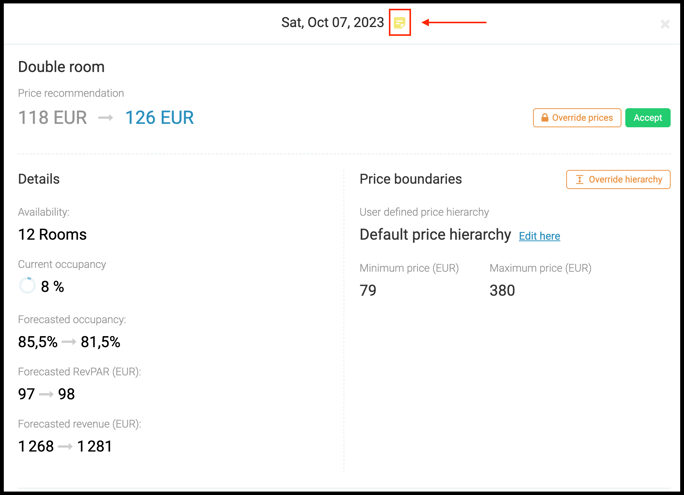
The maximum number of characters a note can have is 256.
### **Edit a note**
To edit a note you enter the **note section** and rewrite your note. When you are satisfied click outside the text field and your note is automatically updated.
If you have opened up an existing note from the detailed room type overview you need to click the *save note* button after editing your note.
### **Removing a note**
To remove a note you enter the note section on the stay date and delete the text in your note. Click outside the text field and your note is removed.
When a note has been removed the *note* icon is no longer visible on that stay date.
### **Adding notes to several stay dates**
There are different ways to apply a note to multiple days.
When applying a note to multiple dates they are **not** linked to each other, only copied and pasted to the selected dates.
This means when creating multiple notes at once and one of those notes is edited, only that note will be edited, the rest remains as they were.
#### **Select dates and apply on multiple dates**
By using the checkboxes on the *All stay dates* page you select the dates you want to apply the note to. Then click the **note icon** above the list, and a window will open.

All your selected dates will be displayed, with the possibility to add/or remove dates.
**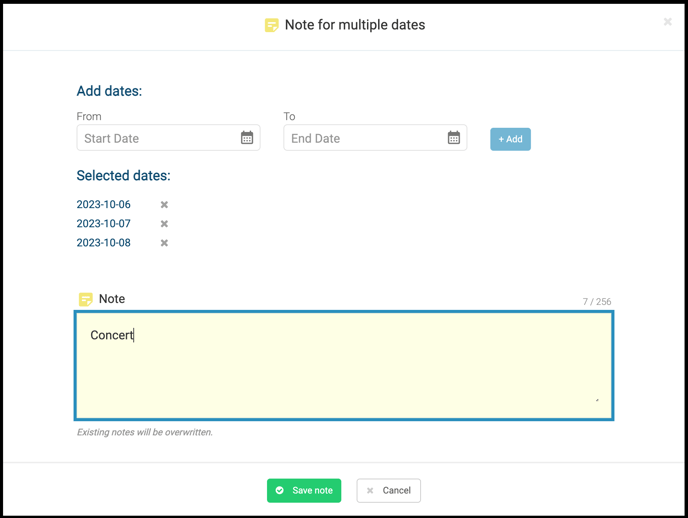**
After writing the note in the text field, click the *save note* button and all selected dates now have the note applied.

It is possible to click the **note icon** without having any checkboxes selected and add dates directly from the date picker in the note window.
You can also add a note to multiple days on the calendar page by clicking the **note icon** above the calendar.

Be aware that if you select a stay date with an **existing note**, that note will be overwritten by the new one you save.
#### **Apply an existing note to multiple dates**
When you want to assign an existing note to more stay dates, click the *+ Copy to more dates* button under the **note section** to the left.
****
The **note** **window** will appear and the existing note is displayed in the text field. Add the dates you want the note to be applied to by using the date picker.
#### **Add a note after a bulk override**
When you do a price or hierarchy override in bulk, a pop-up window with the possibility of adding a note on those override dates will appear. This is a great opportunity to ensure that you and your team remember and understand the reasoning behind the override.
****
- [Product Updates](https://help.atomize.com/migration/product-updates?hsLang=en#main-content)
- [Latest releases](https://help.atomize.com/migration/product-updates?hsLang=en#latest-releases)
- [Previous releases](https://help.atomize.com/migration/product-updates?hsLang=en#previous-releases)
- [Frequently Asked Questions](https://help.atomize.com/migration/frequently-asked-questions?hsLang=en#main-content)
- [Data discrepancies](https://help.atomize.com/migration/frequently-asked-questions?hsLang=en#data-discrepancies)
- [Rate discrepancies](https://help.atomize.com/migration/frequently-asked-questions?hsLang=en#rate-discrepancies)
- [Price recommendations](https://help.atomize.com/migration/frequently-asked-questions?hsLang=en#price-recommendations)
- [KPI calculation](https://help.atomize.com/migration/frequently-asked-questions?hsLang=en#kpi-calculation)
- [Group booking](https://help.atomize.com/migration/frequently-asked-questions?hsLang=en#group-booking)
- [Integrations](https://help.atomize.com/migration/frequently-asked-questions?hsLang=en#integrations)
- [Holidays and special events](https://help.atomize.com/migration/frequently-asked-questions?hsLang=en#holidays-and-special-events)
- [Forecast](https://help.atomize.com/migration/frequently-asked-questions?hsLang=en#forecast)
- [Features and functionalities](https://help.atomize.com/migration/features-and-functionalities?hsLang=en#main-content)
- [Main dashboard](https://help.atomize.com/migration/features-and-functionalities?hsLang=en#main-dashboard)
- [Price recommendations](https://help.atomize.com/migration/features-and-functionalities?hsLang=en#price-recommendations)
- [Pricing controls](https://help.atomize.com/migration/features-and-functionalities?hsLang=en#pricing-controls)
- [Autopilot](https://help.atomize.com/migration/features-and-functionalities?hsLang=en#autopilot)
- [Real-time price optimization](https://help.atomize.com/migration/features-and-functionalities?hsLang=en#real-time-price-optimization)
- [Compset data](https://help.atomize.com/migration/features-and-functionalities?hsLang=en#compset-data)
- [Forecasting](https://help.atomize.com/migration/features-and-functionalities?hsLang=en#forecasting)
- [Restriction management](https://help.atomize.com/migration/features-and-functionalities?hsLang=en#restriction-management)
- [Future demand insights](https://help.atomize.com/migration/features-and-functionalities?hsLang=en#future-demand-insights)
- [Other features in the system](https://help.atomize.com/migration/features-and-functionalities?hsLang=en#other-features-in-the-system)
- [Submit a feature request](https://help.atomize.com/migration/features-and-functionalities?hsLang=en#submit-a-feature-request)
- [Best Practices](https://help.atomize.com/migration/best-practices?hsLang=en#main-content)
- [Event Management](https://help.atomize.com/migration/best-practices?hsLang=en#event-management)
- [Making changes in your account](https://help.atomize.com/migration/making-changes-in-your-account?hsLang=en#main-content)
- [Making user changes to your account](https://help.atomize.com/migration/making-changes-in-your-account?hsLang=en#making-user-changes-to-your-account)
- [PMS Changes](https://help.atomize.com/migration/making-changes-in-your-account?hsLang=en#pms-changes)
- [Configurational changes in your account](https://help.atomize.com/migration/making-changes-in-your-account?hsLang=en#configurational-changes-in-your-account)
- [Online training videos for new users and steps to complete for new properties](https://help.atomize.com/migration/online-training-videos-for-new-users-and-steps-to-complete-for-new-properties?hsLang=en)
- [Cloudbeds](https://help.atomize.com/migration/cloudbeds?hsLang=en)
- [Sample Contact Page](https://atomize-4112891.hs-sites.com/sample-contact)
- [Sample About Page](https://atomize-4112891.hs-sites.com/sample-about)
- [Default HubSpot Blog](https://atomize-4112891.hs-sites.com/blog)
[](https://help.atomize.com/?hsLang=en)
Knowledge Base | Atomize
Copyright © 2026, Atomize
```json
{
"@context" : "https://schema.org",
"@type" : "VideoObject",
"caption" : {
"@type" : "MediaObject",
"contentUrl" : "https://help.atomize.com/media-transcripts/121278337666/en.vtt",
"inLanguage" : "en",
"name" : "en Captions"
},
"contentUrl" : "https://4112891.fs1.hubspotusercontent-na1.net/hubfs/4112891/Atomize%20Notes%20(Video)%20(1).mp4",
"dateModified" : "2025-06-12T14:32:02.273Z",
"duration" : "PT25.839S",
"height" : 1080,
"name" : "Atomize Notes (Video) (1)",
"thumbnailUrl" : "https://4112891.fs1.hubspotusercontent-na1.net/hubfs/4112891/Atomize%20Notes%20(Video)%20(1).mp4/medium.jpg",
"uploadDate" : "2023-06-19T09:56:28.323Z",
"width" : 1920
}
```