---
title: Price level adjustments
description: How to adjust price levels in Atomize RMS by Mews
---
[Skip to content](https://help.atomize.com/migration/price-level-adjustments#main-content)
English
Show submenu for translations
![Atomize- blue-1.png\]](https://help.atomize.com/hs-fs/hubfs/Atomize-%20blue-1.png?height=40&name=Atomize-%20blue-1.png)
- [Sample Contact Page](https://atomize-4112891.hs-sites.com/sample-contact)
- [Sample About Page](https://atomize-4112891.hs-sites.com/sample-about)
- [Default HubSpot Blog](https://atomize-4112891.hs-sites.com/blog)
Open main navigation
Close main navigation
- [Sample Contact Page](https://atomize-4112891.hs-sites.com/sample-contact)
- [Sample About Page](https://atomize-4112891.hs-sites.com/sample-about)
- [Default HubSpot Blog](https://atomize-4112891.hs-sites.com/blog)
- English
Show submenu for translations
- Go to atomize.com
Go to atomize.com
Hello. How can we help you?
- There are no suggestions because the search field is empty.
1. [Customer Knowledge Base](https://help.atomize.com/migration?hsLang=en)
2. [Features and functionalities](https://help.atomize.com/migration/features-and-functionalities?hsLang=en)
3. [Pricing controls](https://help.atomize.com/migration/features-and-functionalities?hsLang=en#pricing-controls)
# Price level adjustments
## How to adjust price levels in Atomize RMS by Mews
Adjusting price levels in **Atomize,** fine-tunes price recommendations for specific stay dates. Revenue managers and front office staff adjust these levels to quickly respond to market changes—such as spikes in demand or dips in occupancy—without disabling dynamic pricing. Revenue managers and front office staff typically perform this task directly in Atomize, using the **Calendar**, **All stay dates**, or **Most urgent** views.
This feature especially supports properties with limited historical data, as it gives you manual control while maintaining data-driven optimization.
In this article, you can learn about:
- [How to adjust price levels in Atomize](https://help.atomize.com/migration/price-level-adjustments#how_to_adjust_price_levels)
- [How to adjust price levels on multiple dates](https://help.atomize.com/migration/price-level-adjustments#how_to_adjust_price_levels_for_multiple_date)
- [Limitations and additional considerations](https://help.atomize.com/migration/price-level-adjustments#Limitations_and_additional_considerations)
- [Watch the video to see how price level adjustments are done](https://help.atomize.com/migration/price-level-adjustments#Watch-video)
### How to adjust price levels in Atomize
1. Go to the **Calendar**, **All stay dates**, or **Most urgent** view in Atomize RMS.
2. Open the date you want to adjust the price level for.
3. Click **Adjust price levels.** The **Adjust price levels** screen appears.
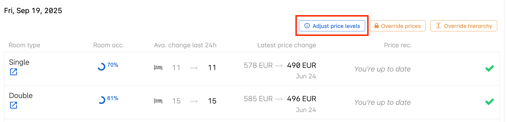
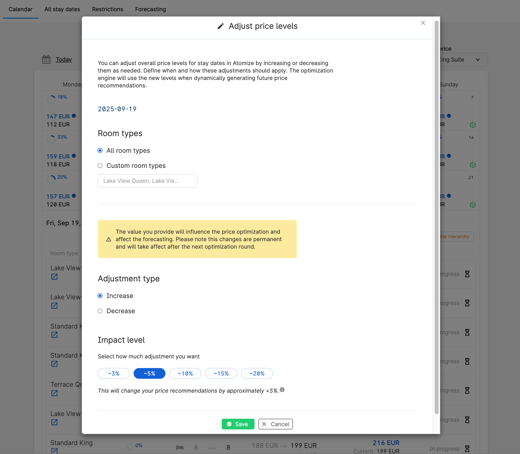
4. Under **Room types** click to select one of the following options
- **All room types:** Applies the adjustment to all room types.
- **Custom room types**: Applies the adjustment to a specific room type.
- Click the dropdown to select one or multiple specific room types.
5. Under **Adjustment type** click to select one of the following options:
- **Increase**: Set the price adjustment to increase the price.
- **Decrease**: Set the price adjustment to decrease the price.
6. Under **Impact level**, click to select one of the following options.***Note****: Due to factors relating to price optimization, these numbers are approximate, not exact*:
- ~3%
- ~5%
- ~10%
- ~15%
- ~20%
7. Click **Save** to confirm the changes.
Each expanded date with a price adjustment will display a banner indicating that a change has been made.
### How to adjust price levels for multiple dates
To adjust the price level in Atomize from the **All stay dates** screen.
1. Click the checkbox next to a date to select it.
2. Click **Adjust price levels** button in the top right**.**
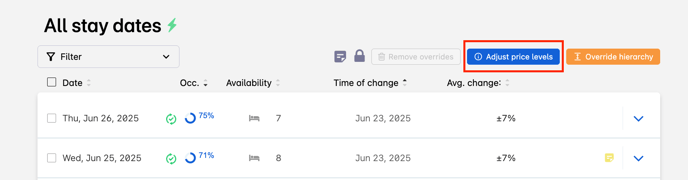
3. The **Adjust price levels** screen appears. In the date section, it is possible to add (or remove) more dates.
4. Under **Room types** click to select one of the following options
- **All room types:** Applies the adjustment to all room types.
- **Custom room types**: Applies the adjustment to a specific room type.
- Click the dropdown to select one or multiple specific room types.
5. Under **Adjustment type** click to select one of the following options:
- **Increase**: Set the price adjustment to increase the price.
- **Decrease**: Set the price adjustment to decrease the price.
6. Under **Impact level**, click to select one of the following options.***Note****: Due to factors relating to price optimization, these numbers are approximate, not exact*:
- ~3%
- ~5%
- ~10%
- ~15%
- ~20%
7. Click **Save** to confirm the changes.
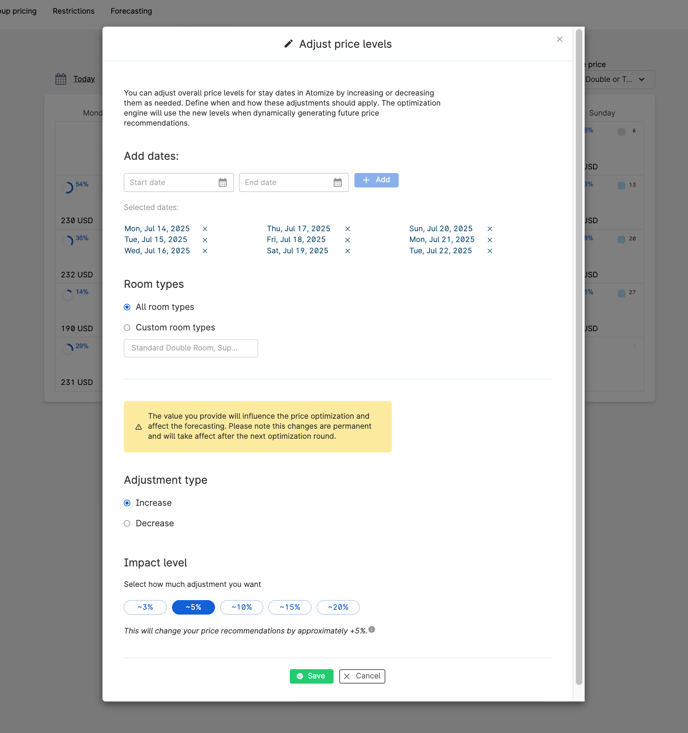
Tip: You can use the same button on the calendar page to adjust price levels for multiple dates at once.
### Limitations and additional considerations
Atomize applies adjustments according to the ruling hierarchy for the selected dates. You can only adjust prices for dates that Atomize currently optimize, typically up to 1 or 2 years in advance depending on how Atomize configures your property.
If your property uses **Autopilot**, Atomize automatically accepts and pushes new recommendations to the property management system.
***Note****:*
- *If the new price exceeds your configured minimum or maximum price, Atomize enforces those limits. It displays the* ***price limit reached*** *icon and applies the nearest valid price.*
- *Atomize cannot adjust prices for stay dates that have no price set in the property management system* ***for example****, if the hotel is closed.*
### Watch the video to see how price level adjustments are done
- [Product Updates](https://help.atomize.com/migration/product-updates?hsLang=en#main-content)
- [Latest releases](https://help.atomize.com/migration/product-updates?hsLang=en#latest-releases)
- [Previous releases](https://help.atomize.com/migration/product-updates?hsLang=en#previous-releases)
- [Frequently Asked Questions](https://help.atomize.com/migration/frequently-asked-questions?hsLang=en#main-content)
- [Data discrepancies](https://help.atomize.com/migration/frequently-asked-questions?hsLang=en#data-discrepancies)
- [Rate discrepancies](https://help.atomize.com/migration/frequently-asked-questions?hsLang=en#rate-discrepancies)
- [Price recommendations](https://help.atomize.com/migration/frequently-asked-questions?hsLang=en#price-recommendations)
- [KPI calculation](https://help.atomize.com/migration/frequently-asked-questions?hsLang=en#kpi-calculation)
- [Group booking](https://help.atomize.com/migration/frequently-asked-questions?hsLang=en#group-booking)
- [Integrations](https://help.atomize.com/migration/frequently-asked-questions?hsLang=en#integrations)
- [Holidays and special events](https://help.atomize.com/migration/frequently-asked-questions?hsLang=en#holidays-and-special-events)
- [Forecast](https://help.atomize.com/migration/frequently-asked-questions?hsLang=en#forecast)
- [Features and functionalities](https://help.atomize.com/migration/features-and-functionalities?hsLang=en#main-content)
- [Main dashboard](https://help.atomize.com/migration/features-and-functionalities?hsLang=en#main-dashboard)
- [Price recommendations](https://help.atomize.com/migration/features-and-functionalities?hsLang=en#price-recommendations)
- [Pricing controls](https://help.atomize.com/migration/features-and-functionalities?hsLang=en#pricing-controls)
- [Autopilot](https://help.atomize.com/migration/features-and-functionalities?hsLang=en#autopilot)
- [Real-time price optimization](https://help.atomize.com/migration/features-and-functionalities?hsLang=en#real-time-price-optimization)
- [Compset data](https://help.atomize.com/migration/features-and-functionalities?hsLang=en#compset-data)
- [Forecasting](https://help.atomize.com/migration/features-and-functionalities?hsLang=en#forecasting)
- [Restriction management](https://help.atomize.com/migration/features-and-functionalities?hsLang=en#restriction-management)
- [Future demand insights](https://help.atomize.com/migration/features-and-functionalities?hsLang=en#future-demand-insights)
- [Other features in the system](https://help.atomize.com/migration/features-and-functionalities?hsLang=en#other-features-in-the-system)
- [Submit a feature request](https://help.atomize.com/migration/features-and-functionalities?hsLang=en#submit-a-feature-request)
- [Best Practices](https://help.atomize.com/migration/best-practices?hsLang=en#main-content)
- [Event Management](https://help.atomize.com/migration/best-practices?hsLang=en#event-management)
- [Making changes in your account](https://help.atomize.com/migration/making-changes-in-your-account?hsLang=en#main-content)
- [Making user changes to your account](https://help.atomize.com/migration/making-changes-in-your-account?hsLang=en#making-user-changes-to-your-account)
- [PMS Changes](https://help.atomize.com/migration/making-changes-in-your-account?hsLang=en#pms-changes)
- [Configurational changes in your account](https://help.atomize.com/migration/making-changes-in-your-account?hsLang=en#configurational-changes-in-your-account)
- [Online training videos for new users and steps to complete for new properties](https://help.atomize.com/migration/online-training-videos-for-new-users-and-steps-to-complete-for-new-properties?hsLang=en)
- [Cloudbeds](https://help.atomize.com/migration/cloudbeds?hsLang=en)
- [Sample Contact Page](https://atomize-4112891.hs-sites.com/sample-contact)
- [Sample About Page](https://atomize-4112891.hs-sites.com/sample-about)
- [Default HubSpot Blog](https://atomize-4112891.hs-sites.com/blog)
[](https://help.atomize.com/?hsLang=en)
Knowledge Base | Atomize
Copyright © 2026, Atomize
```json
{
"@context" : "https://schema.org",
"@type" : "VideoObject",
"caption" : {
"@type" : "MediaObject",
"contentUrl" : "https://help.atomize.com/media-transcripts/192177215812/en.vtt",
"inLanguage" : "en",
"name" : "en Captions"
},
"contentUrl" : "https://stream.mux.com/JGqDX5Cvb11ZZWoEpxrcfEQjHnlXNOenK2HUhPdaIqI/capped-1080p.mp4",
"dateModified" : "2025-07-04T08:15:31.332Z",
"duration" : "PT3M51S",
"height" : 1080,
"name" : "Atomize_ Manual price level adjustments",
"thumbnailUrl" : "https://4112891.fs1.hubspotusercontent-na1.net/hubfs/4112891/Atomize_%20Manual%20price%20level%20adjustments.mp4/medium.jpg",
"uploadDate" : "2025-07-04T08:15:10.394Z",
"width" : 1920
}
```